Adding a reflection is one of the simplest, nicest effects you can apply to an image. Better still, it only takes one or two minutes. In this PhotoShop Quick Tip we go over how to add a reflection to an image or graphic in just a few simple steps.
Step 1:
Open up your image in Photoshop. For this tutorial, I’m using the PhotoGuides logo

Step 2:
Duplicate the layer you wish to create a reflection of, and select the layer on the bottom.

Step 3:
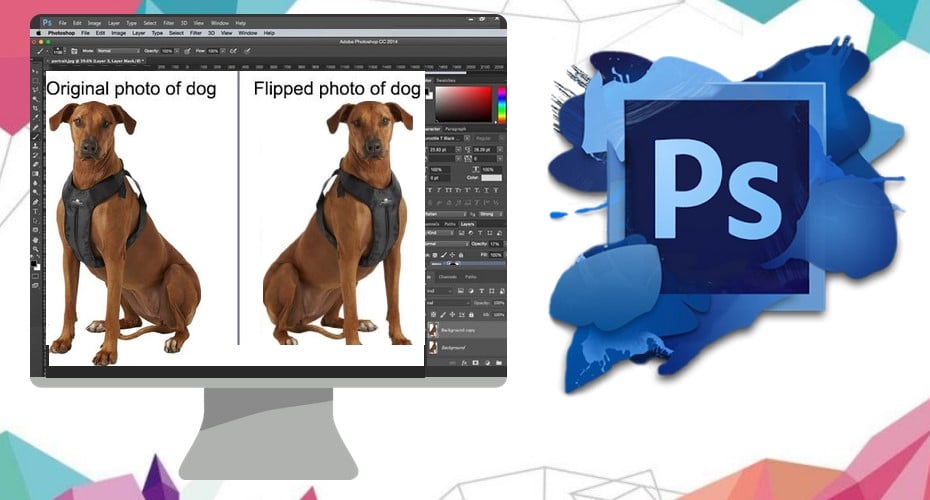
Enter transform mode by pressing control+T or command+ T, right click and select ‘Flip Vertically’.

Step 4:
Drag the newly flipped layer below your current layer. The image is now in place to have the reflection applied.

Step 5:
Add a Layer Mask to the flipped image. This can be done by clicking the icon shown in the image below.

Step 6:
Use the gradient tool with the colours as black and white, and draw a gradient from the top of your reflected image to the bottom.

Step 7:
Finally, reduce the opacity of the reflection layer to around 30-40%.

That’s all there is to it. Adding a reflection is a very easy process, and the results are stunning. Once you’ve done this once or twice, adding a reflection will become almost second nature, and you’ll be able to whip one up in just seconds.
Good luck!
Related Posts
Adding Color to your Subjects in PhotoshopMarch 21, 2010
Bizarre photos of dogs photoshopped into peopleOctober 16, 2012
How to Cross Process Photos in PhotoshopMay 21, 2012
What’s new in Adobe CS6May 9, 2012
Introducing the PhotoGuides ForumJune 19, 2011
-
http://www.photoguides.net/?fbconnect_action=myhome&userid=1102&height=400&width=370 Jo5hn
-
http://www.photoguides.net/?fbconnect_action=myhome&userid=1&height=400&width=370 Ash Davies
-
http://www.photoguides.net/?fbconnect_action=myhome&userid=4843&height=400&width=370 Pleak
-
Alikhan81